Introduction: Three Popular AI Coding Tools, Three Different Workflows
The Cursor vs GitHub Copilot vs Windsurf decision matters because these tools now shape how developers plan, write, review, and refactor code. They are often compared side by side, but they are not identical products. Cursor and Windsurf are AI-native code editors built around assistant-driven development. GitHub Copilot is a broader AI coding assistant that works inside many existing developer environments and is closely tied to GitHub workflows.
This guide compares the three tools across the practical factors that matter before choosing one: coding workflow, AI assistance, code completion, codebase understanding, agentic capabilities, multi-file editing, IDE and editor experience, team features, privacy, pricing, and best use cases. It does not claim controlled speed benchmarks or private hands-on testing. Instead, it uses current publicly available product information, official documentation where accessible, and transparent workflow analysis.
Pricing, model availability, usage limits, and product features can change frequently. Check each provider's current plans and documentation before making a purchase decision.
Quick Verdict: Cursor vs GitHub Copilot vs Windsurf
Choose Cursor if you want the strongest AI-native editor experience for repository-aware chat, multi-file edits, agent-assisted implementation, and fast product development inside one focused workspace.
Choose GitHub Copilot if you want the easiest adoption path, broad IDE support, GitHub-native workflows, enterprise controls, and AI help without forcing your team to switch editors.
Choose Windsurf if you want a polished AI-first editor alternative with strong flow-oriented suggestions, Cascade-style assistance, and a familiar VS Code-style environment.
| Category | Best Pick | Why |
|---|---|---|
| Best for AI-native editor experience | Cursor | Cursor is built around chat, context, and multi-file AI edits as a primary workflow. |
| Best for existing IDE workflows | GitHub Copilot | Copilot works across mainstream editors and GitHub surfaces, reducing migration friction. |
| Best for GitHub-centric teams | GitHub Copilot | It connects naturally with GitHub, pull requests, CLI, code review, and organization controls. |
| Best for agentic development | Cursor or Windsurf | Both are designed around AI-native editing and multi-step implementation workflows. |
| Best for beginners | GitHub Copilot or Windsurf | Copilot fits familiar IDEs; Windsurf offers an approachable AI-first editor experience. |
| Best for enterprise teams | GitHub Copilot | Broad IDE coverage, business plans, policy controls, and GitHub administration are strong advantages. |
| Best value | Depends on current plans | Pricing and quotas change quickly, so compare current usage limits and billing terms before buying. |
Cursor vs GitHub Copilot vs Windsurf: At a Glance
| Row | Cursor | GitHub Copilot | Windsurf |
|---|---|---|---|
| Core product type | AI-native code editor. | AI coding assistant across IDEs, GitHub, and CLI workflows. | AI-native code editor. |
| Best for | Power users, full-stack builders, startup developers. | Existing IDE users, GitHub teams, enterprises. | Developers wanting a fast AI-first editor alternative. |
| Editor / IDE support | Cursor editor, VS Code-style workflow. | VS Code, Visual Studio, JetBrains IDEs, Neovim, Xcode, GitHub, CLI, and more where supported. | Windsurf editor with VS Code-style experience. |
| Code completion | Strong tab and next-edit style suggestions. | Mature inline completion across many editors. | Strong flow-oriented suggestions and Windsurf Tab. |
| AI chat | Deeply integrated editor chat. | Copilot Chat in supported environments. | Cascade/chat-style assistance. |
| Codebase understanding | Strong repository-aware context when configured well. | Useful context across IDE/GitHub features; enterprise options add deeper org context. | Codebase-aware workflows through the editor. |
| Multi-file editing | Major strength. | Available in agent workflows where supported. | Major strength through Cascade-style workflows. |
| Agent capabilities | Strong agent and background workflows on supported plans. | Agent mode, CLI, code review, and GitHub-connected agents where available. | Cascade-style multi-step assistance. |
| Terminal integration | Useful inside editor workflow. | Copilot CLI and IDE terminal-related assistance where supported. | Integrated terminal-style workflow inside editor. |
| Model options | Multiple premium models and usage-based agent economics; check current plan. | Model options vary by plan and feature; GitHub AI Credits matter. | Premium and included models vary by plan; check current documentation. |
| Free option | Yes, with limits. | Yes, with limited completions/chat/agent usage for eligible individual users. | Yes, with credits/limits that may vary by plan and region. |
| Starting paid price | Check current pricing; official pricing toggles and usage terms change. | Copilot Pro is listed at $10/user/month; business pricing differs. | Check current pricing; docs and pricing pages can change. |
| Team plans | Team plan available. | Business and Enterprise plans available. | Team/Enterprise-style options available. |
| Enterprise options | Custom enterprise controls available. | Strong enterprise administration and GitHub Enterprise Cloud integration. | Enterprise controls available; verify current terms. |
| Privacy controls | Team/enterprise controls; review privacy mode and data handling. | Business/enterprise policy controls and organization management. | Review current team privacy, admin, and access controls. |
| Learning curve | Moderate. | Low. | Low to moderate. |
| Overall recommendation | Best AI-native editor for power users. | Best default for teams and GitHub users. | Best AI-native alternative to trial seriously. |
How We Compared the Three Platforms
We compared the three platforms using current publicly available product information, documentation, pricing pages where accessible, supported workflows, developer features, privacy controls, and team capabilities. This is a commercial investigation guide, not a laboratory benchmark.
- Editor and IDE experience.
- Code completion and inline edits.
- Chat and code-question workflows.
- Repository and codebase understanding.
- Multi-file editing and refactoring support.
- Agentic workflows, terminal help, and test generation.
- Model options and plan limits.
- Team administration, privacy, and enterprise fit.
- Pricing structure and likely buyer value.
- Adoption friction for individuals and teams.
What Is Cursor?
Cursor is an AI-native code editor designed for developers who want AI assistance embedded into the editing workflow rather than added as a simple autocomplete plugin. Its core value is the combination of editor chat, codebase context, multi-file changes, and agent-style workflows.
Cursor is designed for developers who are comfortable moving into a dedicated AI editor. It is especially useful for full-stack work, frontend applications, API implementation, refactoring, tests, and tasks that require jumping across several files.
Main strengths: strong AI-native workflow, repository-aware editing, multi-file changes, model flexibility, and fast iteration for product builders.
Main limitations: switching editors can be a real adoption cost, heavy agent use can make plan limits important, and teams must review privacy/admin settings before standardizing on it.
What Is GitHub Copilot?
GitHub Copilot is an AI coding assistant that works across many developer environments rather than requiring a dedicated AI-native editor. It is deeply connected to GitHub and supports workflows such as inline suggestions, chat, CLI help, agent mode where available, code review, and repository-related assistance.
Copilot is designed for developers and teams that want AI assistance inside familiar tools. Its biggest advantage is adoption: an organization can often roll out Copilot without asking everyone to abandon VS Code, JetBrains IDEs, Visual Studio, Neovim, Xcode, or GitHub workflows.
Main strengths: broad IDE support, mature autocomplete, GitHub-native workflows, business/enterprise administration, and lower migration friction.
Main limitations: it may feel less immersive than an AI-native editor, advanced agent behavior varies by environment and plan, and GitHub AI Credits/usage billing must be monitored by teams.
What Is Windsurf?
Windsurf is an AI-native coding editor focused on fast suggestions, codebase-aware assistance, and Cascade-style workflows. Like Cursor, it asks developers to consider an AI-first editor experience rather than simply adding a plugin to an existing IDE.
Windsurf is attractive for developers who want a focused AI editor with a familiar VS Code-style base and strong flow-oriented assistance. It is often compared with Cursor because both products try to reshape the editing experience around AI.
Main strengths: approachable AI-native workflow, strong autocomplete positioning, guided multi-step assistance, and a serious alternative for developers comparing Cursor alternatives.
Main limitations: enterprise teams should verify current admin/privacy controls, exact plan limits can change, and developers who need broad IDE support may prefer Copilot.
Cursor vs GitHub Copilot vs Windsurf: Feature-by-Feature Comparison
This section compares the tools by real developer workflow area. The winner is not always a single product because the best choice depends on whether you want an AI-native editor, an assistant inside your current IDE, or a team-wide GitHub-centered rollout.
1. Editor and IDE Experience
Cursor and Windsurf are AI-native editors. Their strongest features appear when you adopt their editor as the primary workspace. GitHub Copilot takes the opposite approach: it works inside many existing IDEs and GitHub surfaces, so developers can keep their current setup.
Winner: GitHub Copilot for existing IDE workflows; Cursor for AI-native editor depth.
Why: Copilot wins on compatibility and low setup friction. Cursor wins when the developer intentionally wants the editor itself to become the AI workspace. Windsurf is close to Cursor for developers who prefer its flow and interface.
2. Code Completion
All three tools support inline coding assistance. GitHub Copilot is mature and widely adopted for code completion across many editors. Cursor combines autocomplete with editor context and next-edit workflows. Windsurf emphasizes flow-aware suggestions and fast coding continuation.
Winner: Tie for most developers.
Why: Completion quality depends heavily on language, project structure, model selection, and current service behavior. Copilot is the safest broad recommendation; Cursor and Windsurf can feel stronger when their AI-native workflows are used fully.
3. AI Chat and Code Questions
Cursor is strong when you ask questions about the current repository and then turn the answer into edits. GitHub Copilot Chat is helpful inside supported IDEs and GitHub contexts, especially for explanations and everyday coding questions. Windsurf's Cascade/chat workflow is designed to keep code questions close to implementation.
Winner: Cursor for AI-native depth; GitHub Copilot for familiar IDE availability.
4. Codebase Understanding
Codebase understanding is where AI coding assistants become more useful than simple autocomplete. Cursor and Windsurf are strongest when they can inspect relevant files, understand project conventions, and make coordinated edits. GitHub Copilot can use IDE and GitHub context, and enterprise features can add deeper organization-level value where available.
Winner: Cursor for individual AI-native codebase work; GitHub Copilot for GitHub-managed teams.
5. Multi-File Editing
Multi-file editing is one of the main reasons developers compare Cursor and Windsurf against Copilot. Cursor is especially compelling when a task touches components, API routes, tests, and config files. Windsurf also targets coordinated editing through agentic workflows. Copilot supports agentic edits where available, but the experience depends more on the specific IDE and plan.
Winner: Cursor, with Windsurf close behind.
6. AI Agent Capabilities
AI agents can plan a task, edit files, run commands, inspect errors, and iterate. Cursor and Windsurf are designed around this style of work. GitHub Copilot has expanded into agent mode, CLI workflows, code review, and GitHub-connected task delegation, but exact availability varies by plan and environment.
Winner: Cursor or Windsurf for editor-native agent work; GitHub Copilot for GitHub-connected agent workflows.
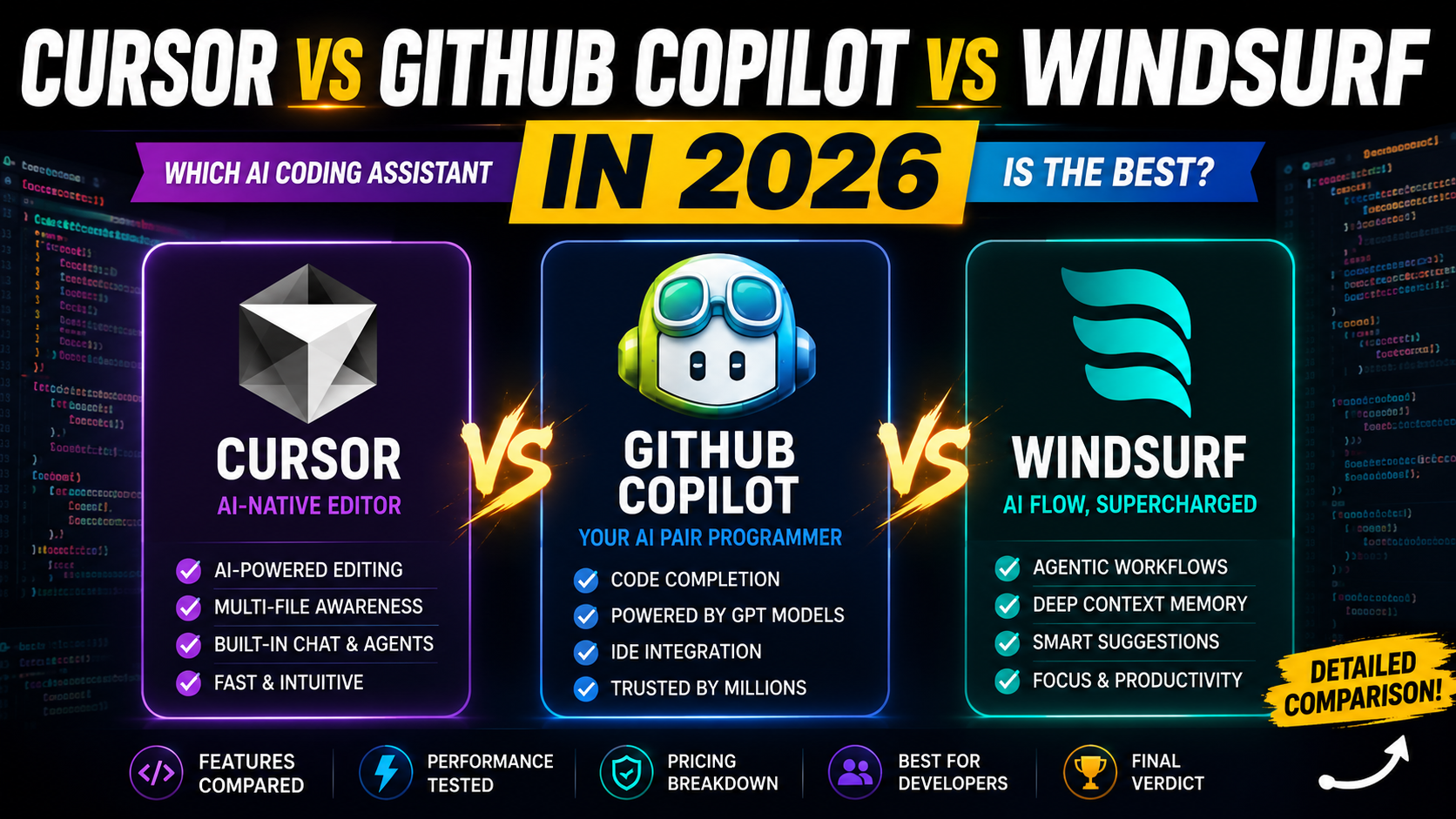
This article avoids unsupported claims such as performance-tested comparisons. The featured thumbnail may use promotional comparison language, but the article does not claim a controlled benchmark.
7. Terminal Integration
Terminal integration matters when an assistant can explain commands, suggest scripts, run tests, or help debug build failures. GitHub Copilot has a clear advantage through Copilot CLI and GitHub-connected workflows. Cursor and Windsurf are useful when the terminal sits inside the AI-native editor flow and the assistant can respond to errors in context.
Winner: GitHub Copilot for CLI reach; Cursor/Windsurf for editor-integrated task loops.
8. Debugging and Refactoring
For debugging, all three tools can explain errors, suggest fixes, and generate test ideas. Cursor is strong when a bug spans multiple files and you want the assistant to apply a coordinated patch. Copilot is strong when the issue lives inside a familiar IDE or GitHub workflow. Windsurf is useful when you want a guided implementation flow inside its editor.
Winner: Cursor for multi-file refactors; GitHub Copilot for everyday debugging in existing IDEs.
9. AI Model Options
Model access changes quickly across all three tools. GitHub Copilot now uses GitHub AI Credits for many premium interactions, with model availability varying by plan and feature. Cursor's plan value depends partly on included agent usage, model selection, and usage-based economics. Windsurf's model access and credits/quotas should be checked against current documentation before buying.
Winner: No universal winner.
Why: The best model setup depends on whether you need low-cost autocomplete, premium reasoning models, larger context, or heavy agent usage.
10. Programming Language Support
For mainstream professional development, all three tools are relevant for popular languages and frameworks such as JavaScript, TypeScript, Python, Java, Go, frontend frameworks, backend APIs, and common scripting tasks. The practical difference is usually not whether a language is supported at all, but how much context the assistant has about your project and how well it follows your conventions.
Winner: Tie for mainstream languages; test your exact stack before committing.
11. Extensions and Ecosystem
GitHub Copilot has the broadest ecosystem because it integrates into many existing development environments. Cursor and Windsurf use VS Code-style editor foundations, which makes them familiar to many developers, but teams should verify extension compatibility for the exact tools they depend on.
Winner: GitHub Copilot for ecosystem reach.
12. Ease of Use
GitHub Copilot is easiest to adopt because developers can keep their current editor. Windsurf is approachable if a developer wants to try an AI-first editor without a heavy learning curve. Cursor can be extremely productive, but its best workflows require learning how to provide context, review agent changes, and guide multi-file edits.
Winner: GitHub Copilot for immediate adoption; Windsurf for approachable AI-native editing; Cursor for long-term power users.
Cursor vs GitHub Copilot vs Windsurf Pricing
Pricing should be verified directly before purchase because all three providers can change plan names, usage limits, model availability, credits, and team pricing. The table below uses cautious current-positioning language rather than pretending pricing never changes.
| Tool | Free Option | Individual Plan | Team / Business Plan | Enterprise | Best Value For |
|---|---|---|---|---|---|
| Cursor | Free option available with limits. | Check current pricing; individual plans are tied to agent usage/model economics. | Team plan available; verify current seat price, usage limits, and privacy controls. | Custom enterprise options. | Power users who benefit from AI-native multi-file workflows. |
| GitHub Copilot | Copilot Free available for eligible individual users with limited usage. | Copilot Pro listed at $10/user/month; Pro+ and Max add more premium usage. | Copilot Business listed in GitHub docs at $19/user/month; verify current org billing. | Copilot Enterprise listed separately for GitHub Enterprise Cloud customers. | Developers and teams already using GitHub and existing IDEs. |
| Windsurf | Free option available with credits/limits. | Check current pricing; docs reference Pro, credits, and premium-model access. | Teams plan available; verify current seat price and credit structure. | Enterprise option available; verify current SSO/SCIM/RBAC terms. | Developers who want an AI-native editor alternative to Cursor. |
Casual developers should start with free or trial options. Professionals should compare how often they use agent workflows. Teams should focus less on the lowest sticker price and more on governance, privacy, seat management, predictable usage, and whether developers will actually adopt the tool.
Which Has the Best Free Plan?
GitHub Copilot, Cursor, and Windsurf all have some form of free or limited entry path, but exact usage limits can change. GitHub's public Copilot plans mention a free tier with limited completions and limited chat/agent usage. Cursor and Windsurf also position free plans as ways to start, with limits around agent usage, completions, credits, or model access depending on the current plan.
Practical answer: if you only need occasional autocomplete, try the free plans first. If you use chat, agents, multi-file edits, premium models, or daily coding workflows, expect paid tiers to matter quickly.
Cursor vs GitHub Copilot vs Windsurf: Privacy and Security
AI coding assistants can be safe enough for professional workflows only when configured and governed properly. Never assume any tool makes proprietary code, secrets, or production credentials automatically safe.
Review each provider's current policies for source-code handling, data retention, model training, logging, enterprise privacy controls, SSO, SCIM, audit logs, repository access, and administrative restrictions. GitHub Copilot is often easier for organizations already using GitHub governance. Cursor and Windsurf can be good choices for AI-forward teams, but privacy mode, admin controls, and contract terms should be reviewed before connecting sensitive repositories.
Developers should avoid pasting API keys, private credentials, customer data, or unreleased proprietary logic into AI tools unless their organization's policy explicitly allows it. Human review, tests, dependency scanning, and code review remain mandatory for production code.
Which AI Coding Assistant Feels Fastest?
This article does not claim a controlled speed test. Perceived speed can depend on the selected model, task complexity, repository size, local machine performance, network conditions, provider load, plan limits, and current service conditions.
GitHub Copilot often feels fast for inline suggestions because it sits inside familiar editor workflows. Cursor can feel faster for larger implementation tasks because chat, context, and edits happen in one AI-native editor. Windsurf can feel fluid when autocomplete and Cascade-style workflows match the developer's rhythm.
The best speed test is your own workflow: run the same feature, bug fix, and refactor in each tool and measure how much correction and cleanup each one needs.
Which Tool Is Best for Your Development Workflow?
| Workflow | Recommended Tool | Reason |
|---|---|---|
| Frontend developers | Cursor or Windsurf | Both are strong for component edits, UI refactors, and multi-file app changes. |
| Backend developers | Cursor or GitHub Copilot | Cursor helps with repository context; Copilot fits existing IDE/server workflows. |
| Full-stack developers | Cursor | Strong across frontend, APIs, tests, and config. |
| Python developers | GitHub Copilot or Cursor | Copilot fits mainstream IDEs; Cursor is useful for multi-file Python projects. |
| JavaScript/TypeScript developers | Cursor | Especially strong for React, Next.js, Node.js, and full-stack TypeScript workflows. |
| Freelancers | Cursor or Windsurf | AI-native editors can speed up client implementation when reviewed carefully. |
| Students | GitHub Copilot or Windsurf | Copilot has familiar integrations; Windsurf can feel approachable. |
| Startup teams | Cursor | Fast feature work and refactoring can matter more than editor standardization. |
| Enterprise teams | GitHub Copilot | Broad IDE support, policy controls, and GitHub governance usually win. |
| Large codebases | Cursor or GitHub Copilot Enterprise | Cursor is useful for focused repository context; enterprise Copilot can suit org-wide GitHub workflows. |
| Existing VS Code users | GitHub Copilot | Lowest migration friction. |
| GitHub-centric teams | GitHub Copilot | Native fit for PRs, code review, CLI, and GitHub surfaces. |
| Developers wanting an AI-native editor | Cursor or Windsurf | Both are built around AI-first editing. |
Cursor vs Copilot vs Windsurf: Example Workflows
Example 1: Building a React or Next.js feature. In Cursor, you might describe the feature, reference relevant components, ask for a multi-file implementation, then review the patch. In Copilot, you might work file by file inside VS Code or JetBrains with chat and inline suggestions. In Windsurf, you might use Cascade-style assistance to move from requirement to edits while staying inside the AI-first editor.
Example 2: Fixing a bug across multiple files. Cursor is useful when the bug touches state, API logic, and UI rendering. Copilot is useful when you already know the failure and want suggestions inside your existing environment. Windsurf is useful when you want a guided debug-and-edit loop inside the editor.
Example 3: Understanding an unfamiliar codebase. Cursor and Windsurf can help explain project structure when pointed at relevant files. Copilot can answer code questions inside supported IDE and GitHub contexts. In all cases, ask the assistant to cite files and verify assumptions manually.
Example 4: Refactoring an existing feature. Cursor is often the strongest when the refactor requires coordinated changes. Copilot is efficient for incremental edits. Windsurf is helpful when the refactor can be guided through a focused AI-native workflow.
Cursor Pros and Cons
Pros:
- Excellent AI-native editor workflow.
- Strong for repository-aware questions and multi-file edits.
- Useful for full-stack feature work, refactoring, tests, and debugging.
- Good fit for developers who want agents inside the editor.
- Can speed up startup and solo-builder workflows.
Cons:
- Requires adopting Cursor as a primary editor for best results.
- Heavy agent usage can make usage limits and model costs important.
- Teams must review privacy, admin controls, and extension compatibility.
- May be more workflow change than some enterprise teams want.
GitHub Copilot Pros and Cons
Pros:
- Broad IDE and GitHub ecosystem support.
- Low migration friction for teams.
- Mature inline code completion.
- Strong fit for GitHub pull request, code review, and CLI workflows.
- Business and enterprise controls make organization rollout easier.
Cons:
- Less AI-native than Cursor or Windsurf as an editor experience.
- Agent and model capabilities vary by plan and environment.
- Usage-based credits require budget monitoring.
- May not feel as focused for multi-file product building as Cursor.
Windsurf Pros and Cons
Pros:
- Polished AI-native editor alternative.
- Strong autocomplete and flow-oriented suggestions.
- Cascade-style workflows are useful for guided implementation.
- Familiar VS Code-style experience for many developers.
- Good option for developers comparing Cursor alternatives.
Cons:
- Requires editor adoption for the best experience.
- Exact pricing, credits, and quotas should be verified before purchase.
- May not match Copilot for broad IDE and GitHub organization rollout.
- Teams should review privacy and enterprise controls carefully.
Is It Worth Switching?
Should you switch from GitHub Copilot to Cursor? Consider switching if you want multi-file AI-native workflows and are comfortable moving your coding environment. Stay with Copilot if your main priority is familiar IDE support and GitHub integration.
Should you switch from Cursor to Windsurf? Try Windsurf if Cursor feels heavy, expensive for your usage pattern, or less natural than you expected. Do not switch only because of hype; compare both on the same project.
Should you switch from Windsurf to Cursor? Switch if you want deeper AI-native control, stronger repository-aware workflows, or a larger power-user ecosystem around Cursor-style development.
Should you keep GitHub Copilot? Yes, if your team is standardized around existing IDEs, GitHub workflows, and enterprise governance. Switching tools can cost time through editor habits, extensions, privacy approvals, and team retraining.
Can You Use Cursor, GitHub Copilot, and Windsurf Together?
Technically, developers can try more than one AI coding tool, but using all three together is rarely efficient. Overlapping autocomplete can become distracting, subscriptions add cost, and switching between assistant styles can make your workflow less consistent.
A practical setup is to choose one primary tool. Some developers may keep GitHub Copilot for familiar IDE/GitHub workflows while trialing Cursor or Windsurf on side projects. For teams, standardization usually matters more than collecting every AI assistant.
Best Alternatives to Cursor, GitHub Copilot, and Windsurf
If none of these three fits your workflow, consider other AI developer tools from our best AI coding tools for developers pillar guide.
- Claude Code for terminal-first coding agent workflows.
- Gemini Code Assist for teams already invested in Google Cloud and Gemini workflows.
- Amazon Q Developer for AWS-heavy development teams.
- Tabnine for teams prioritizing autocomplete and privacy-conscious deployment choices.
- Cline for VS Code users experimenting with agentic workflows.
- Aider for terminal-based pair programming with Git.
For terminal agents, cloud coding agents, and open-source alternatives beyond these three editors, see our guide to the best AI coding agents.
Final Verdict: Cursor vs GitHub Copilot vs Windsurf
Choose Cursor if you want the deepest AI-native editor experience, strong multi-file editing, repository-aware chat, and agent-assisted development for full-stack work.
Choose GitHub Copilot if you want the safest default for existing IDE workflows, GitHub integration, enterprise rollout, and broad team adoption.
Choose Windsurf if you want an AI-native editor alternative that feels fast, focused, and approachable for coding flow.
Choose another tool if you need terminal-first agents, AWS-specific help, Google Cloud alignment, privacy-specific deployment, or a specialized open-source workflow.
Frequently Asked Questions
A: Cursor is often better for AI-native multi-file editing and agent workflows. GitHub Copilot is usually better for broad IDE support, GitHub integration, and organization-wide adoption.
A: Windsurf may feel smoother or more approachable for some developers, while Cursor is often preferred by power users who want deeper AI-native workflows. Try both on the same project.
A: Check current pricing before deciding. GitHub Copilot Pro is publicly listed at a low individual entry price, while Cursor and Windsurf pricing depends heavily on usage, credits, quotas, and billing settings.
A: All three have some entry path, but limits change. The best free plan depends on whether you need autocomplete, chat, agents, premium models, or daily usage.
A: GitHub Copilot is the easiest fit for staying in VS Code. Cursor and Windsurf are better if you are willing to move into a VS Code-style AI-native editor.
A: Yes. Cursor can be very useful for professional developers, especially those doing full-stack work, refactoring, multi-file changes, and rapid product development.
A: Copilot can use project and GitHub context in supported workflows, but you should not assume perfect whole-codebase understanding. Always verify suggestions against the actual files.
A: Windsurf can help with larger projects, especially when relevant context is available, but teams should test it on their own repositories and verify privacy controls before broad adoption.
A: GitHub Copilot is beginner-friendly because it fits familiar IDEs. Windsurf can also be approachable. Beginners should still read and understand every generated change.
A: GitHub Copilot is usually the easiest enterprise recommendation because of broad IDE support and GitHub organization controls, but Cursor and Windsurf enterprise options may fit AI-forward teams.
A: Compatibility can change and may depend on extension support and product policies. Even when multiple assistants can run, overlapping suggestions may hurt focus.
A: They can be used only with the right privacy settings, contracts, and internal policy. Never paste secrets, credentials, or sensitive data unless your organization explicitly allows it.